Category Archives: Technology

Green Day: Rock Band tracklist revealed

green-day-rock-band

EW’s Music Mix blog’s got the scoop on the latest band-specific Rock Band game, Green Day: Rock Band.  Developer Harmonix had a fun time choosing the venues and songs for the game.  You journey through three venues throughout the course of the game: the National Bowl in Milton Keynes, England; the Fox Theater in the band’s home of Oakland, California; and The Warehouse, a fictional location that’s based on where they used to play before they hit the big leagues.  The game includes 47 songs from three Green Day albums, and they each correspond to the three venues.  Dookie (1994) and American Idiot (2004) are loaded on the disc in their entirety and they’ve included 12 tracks from 21st Century Breakdown (2009).  The remaining six will be made available as downloadable content.  Note that these 6 missing tracks were previously made available for download for Rock Band and Rock Band 2, so if you already own them you can import them into Green Day: Rock Band at no charge.  There’s also a handful of popular singles from Warning (2000), Nimrod (1997), and Insomniac (1995) included.  Look after the break for the full tracklist.

Besides venue and tracklist information, EW reports that the visuals are quite good, and the avatars of Billie Joe Armstrong, Mike Dirnt, and Tré Cool look great thanks to advanced motion-capture technology.  Harmonix spent a lot of time researching the band to make sure everything is historically accurate, even the types and number of tatoos the band members added over the years.  And since MTV Games is part of the project, rare performances and interviews will be included on-disc as unlockabled achievements.  If this game is anything like Harmonix’s last band-specific game, The Beatles, I have no doubt it’s going to ROCK.  Green Day: Rock Band lands in stores June 8.

[Via EW-Music Mix]

Continue reading Green Day: Rock Band tracklist revealed

Microsoft demos new pen & touch input on Surface

Microsoft Research is back with a new way to interact with their Surface multitouch table.

Manual Deskterity is a prototype digital drafting table that supports both pen and touch input. We explore a division of labor between pen and touch that flows from natural human skill and differentiation of roles of the hands. We also explore the simultaneous use of pen and touch to support novel compound gestures.

The combination of pen and touch input makes for a wide range of gestures like holding, tapping, dragging, and crossing that can be used in ways you likely have never seen before.  Check it out in the video demonstation above.  I smell a hint of Courier here.

[Via MyMicrosoftLife; Engadget]

iPad gets turned into a laptop

The LapDock turns your iPad into a laptop. Just dock your iPad into the LapDock, add a wireless keyboard, and bingo – instant laptop!

Besides the addition of being enclosed in a wooden case, you could bypass this less than intriguing alternative and simply purchase Apple’s iPad Keyboard Dock which comes with a keyboard and stands it in the upright position.  The iPad is not a laptop, and so you shouldn’t treat it that way.

[Via iPadLapDock; Engadget]

TSA says netbooks, e-readers, & iPads do not have to be removed from your bag at security checkpoint

As far back as I can remember, the rule regarding laptops at airport security checkpoint goes as follows: “electronics the size of a standard laptop or larger, full-size DVD players, and video cameras that use video cassettes must be removed from their carrying cases and submitted separately for x-ray screening.”  If you forget to remove these electronics from your bag, a security officier could hold you up for such a long time that you might miss your flight.  Today I bring you some good news from the American Transportation Security Administration. “E-readers, Net Books and other small gadgets” are now exempt from the rule.  You can leave these smaller electronics in your bag when passing through the security checkpoint.  The TSA lists the following examples of these types of electronics: “iPads, Kindles, Neos, Nooks, Sony Readers etc.”  However, the TSA reminds us that “if something needs a closer look, it will receive secondary screening.”  And now you know.

[Via TSA; Engadget]

Apple details iPhone OS 4: Multitasking! & more

Today Apple unveiled the developer preview of iPhone OS 4, the next major release of the iPhone operating system.  OS 4 includes over 1500 new APIs for developers and over 100 new user features.  Of these new features, Apple CEO Steve Jobs and Senior VP of iPhone Software Scott Forstall talked about seven “tentpole” features.  Let’s dive right in, shall we?

1. Multitasking: Apple has finally figured out a way to implement multitasking for third-party apps that preserves battery life and overall performance of the iPhone.  The user interface for multitasking is simple.  When you are inside an app, just double tap the home button to raise the window and reveal a new dock at the bottom of the screen.  This dock houses all of your running apps, and you can jump in and out of them by clicking on them.  When asked about how to close applications, Forstall replied, “You don’t have to.  The user just uses things and doesn’t ever have to worry about it.”  Though that sounds nice and cheery, there actually is a way to close out of an app if you are not using it.  Tap and hold an app in the multitask dock and tap the minus button that appears; this confirms the app is now closed.  Seven multitasking services were detailed:

Background audio – Now you can listen to third-party music players in the background just like you could with iPod.  At the keynote, Pandora was demoed and worked without a hitch.  While listening to your custom playlist in Pandora you can jump into Safari to browse a site or jump into Mail to check your inbox for new messages.  Also, if you are in the lock screen you can double tap the home button and use the audio buttons to control Pandora.

VoIP – Now you can receive and hold onto VoIP conversations even if you jump out of the VoIP third-party app.  At the keynote, Skype was demoed.  Once a call is initiated, you can leave the app and jump into another without losing the call.  A double-high status bar appears at the top of the screen that shows your still on the call.  Also, you can still receive Skype calls even if you are in the lock screen; a notification bubble alerts an incoming call.

Background location – Apple says there are two classes of applications that like to use your location in the background:  turn-by-turn direction apps (like TomTom) and social networking apps (like Loopt).  With an app like TomTom becoming location-aware in the background, now you can leave the app and still receive turn-by-turn directions.  For example, you can set and begin your route, jump into iPod to select a song, and TomTom will still read aloud the directions using GPS.  Turn-by-turn direction apps are fairly power intensive apps, but most users have them running in the car when their device is connected to a power source.  An app like Loopt, which is used more often when an external power source is not charging the device, will use cell towers rather than GPS to find your location.  Privacy concerns are also addressed.  Today, whenever an app wants to use location services, a notification bubble asks you to approve the service.  In OS 4, a new status icon (shaped like an arrow) will appear in the status bar at the top of the screen to inform you exactly when an app is tracking your location.  In the settings menu you can enable or disable location services per app.  Also, an icon will appear next to the app name in the settings menu if that app has tried to access location services within the last 24 hours.

Push notifications – We already know all about Apple’s Push Notification service.  A third-party sets up a server, they send their notification to Apple’s Push Notification server, then Apple sends it to the phone.  Building on push notifications is a new service called…

Local notifications – These are just like push notifications except you do not need a server.  The notifications can come right from the phone.  For example, a TV Guide app can alert you to the premiere of a new TV program you wanted to be reminded of, and all this can be done right on the phone instead of going through back-end servers.

Task completion – This service works just like Xbox’s Active Downloads feature.  Say you are uploading photos to your Flickr account.  Today if you were to exit the Flickr app, the upload would stop immediately.  With OS 4, if you leave the app the photos will continue to upload in the background.

Fast app switching – This is what allows an app to pause and save its state in the background when you leave it for another app.  When you return to it, the app will resume exactly where you left off.  So if you are playing a game of Tap Tap Revenge and decide to check your missed calls, when you return to the game it will start right where you left off.  All this is done without using any CPU power. Continue reading Apple details iPhone OS 4: Multitasking! & more

Meet pCubee, a personal, interactive cubic display

pCubee is a research project designed at the University of British Columbia.

We have designed a personal cubic display that offers novel interaction techniques for static and dynamic 3D content. We arrange five small LCD panels into a box shape that is light and compact enough to be handheld. The display uses head-coupled perspective rendering and a real-time physics simulation engine to establish an interaction metaphor of having real objects inside a physical box that a user can hold and manipulate. We have demonstrated four types of interaction techniques with pCubee: viewing a static scene, navigating through a large landscape, playing with colliding objects inside a box, and stylus-based manipulation of objects.

I think the Nintendo 3DS has met its competition in pCubee.  If they’d just make a slot for game cartridges, I can totally see something like this becoming a viable portable gaming device.  Can’t you?

[Via University of British Columbia]

LookTell brings “artificial vision” to smartphones for the blind

LookTel combines the power of a Smartphone with advanced “artificial vision” software to create a helpful electronic assistant for anyone who is visually impaired or blind. You can use LookTel to automatically scan and recognize objects such as money, packaged goods, CDs, DVDs, and medication bottles, as well as landmarks. Point the device video camera at what you wish to “see” and it will pronounce the name very quickly in clear and easy to understand speech. LookTel can be taught to recognize all the objects and landmarks you wish to identify. With a small amount of help from a sighted assistant one can easily teach LookTel to be your helpful assistant for many tasks where vision makes a difference in your independence. LookTel also incorporates a text reader allowing users to get access to print media.

This advanced software from LookTell is absolutely stunning.  If the final product is anything like this beta demo, it is going to be a major technological leap forward for helping the blind interact with every day objects around them.

[Via LookTell; Gizmodo]

STYPE typewriter brings ‘Fringe’ technology to life

STYPE uses a mechanical system of belts and pulleys to enable two-way text-based conversations to magically take place.  The user inputs a message onto a piece of paper using an old-fashioned keyboard.  After a short pause, the user receives a response as the keyboard magically types it out.  For now, STYPE allows for exchange with a chatbot named Eliza, which automatically generates answers to the user’s inputs.  However, the goal is to one day hook this system up to the Internet to make human-t0-human conversation a reality using the Skype service.  Neat!

Fringe fans, the STYPE should ring a little bell inside your head.  Remember that mysterious room in the back of the gun shop where shape shifter Agent Charlie Francis used a typewriter to communicate with someone about Olivia?  Maybe this image will jog your memory.

[Via Engadget]

Biometric Coke machine uses pulse identification, says “order up!”

The future of vending machines is quickly becoming a fun place to explore.  The latest blip on the radar comes from a Hitatchi, a Japanese company.  Their vending machines employs a technology they call VeinID, or “finger vein authentication.”  The machine uses near-infrared light to scan your vein and recognize your indentity.  Your virtual user account includes e-money and personal preferences.  Using the maching is a snap; all you have to do is place your hand on the reader and once it pulls up your account your free to select your beverage of choice on a touch screen.  You can even apply for discounts and rebates if you like and have free beverage samples mailed to your home address (which you are asked to share, along with your email address).  A future where your identity is linked to your body; I always imagined this would come true one day.  I mean, who likes to carry around wallets anyway?

[Via JapanTrends; Gizmodo]

Concept watch relays Facebook, Twitter updates to your wrist

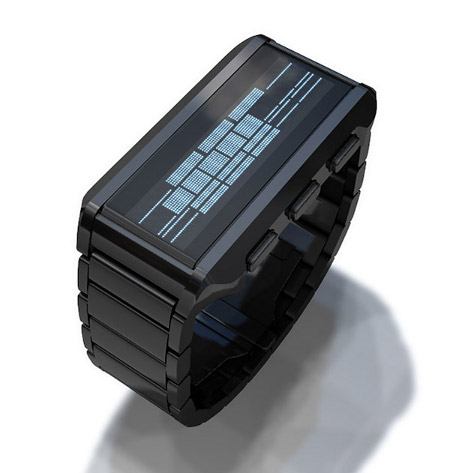
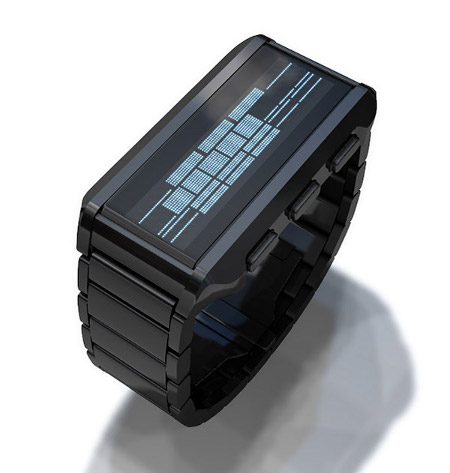
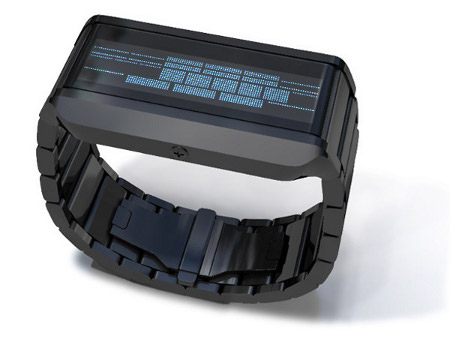
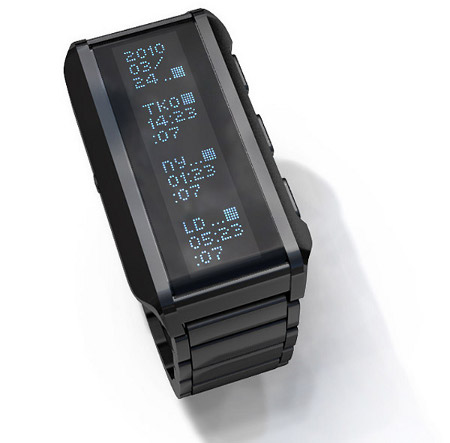
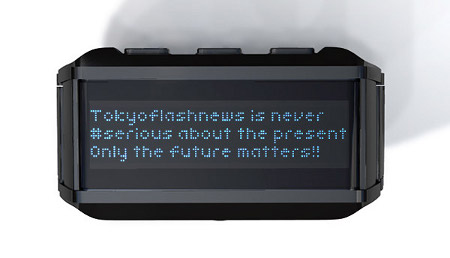
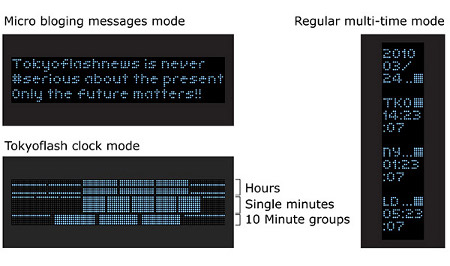
The stainless steel Instant Trend concept watch receives Facebook and Twitter notifications by hooking up to your smartphone via Bluetooth.   Buttons on the side of the watch let you scan through the messages.  And if you think that’s neat, listen to how bizarre reading the actual time is: the pixelated bars you see in the image above represent the time in hours, minutes, and 10-minute blocks.  “Reading the time is simple, just add the blocks; 12 blocks for hours, 5 blocks for groups of 10 minutes and single minutes 1-9.”  Did I mention this is a concept device?

[Via TokyoFlash; Gizmodo]

MIT students watch Minority Report, make the “glove mouse” a reality

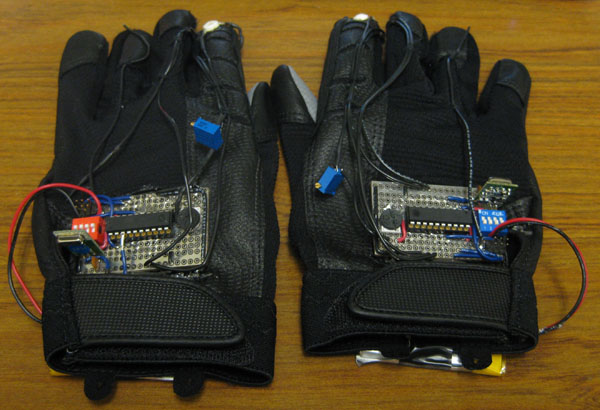
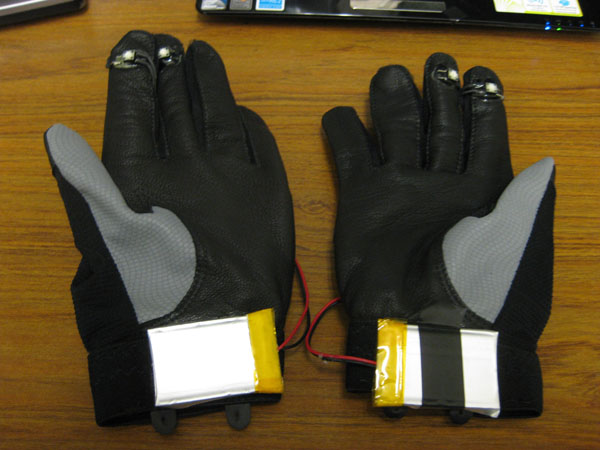
Controlling a computer using nothing but your hands.  A feat we’ve all seen done before by Mr. Cruise in Minority Report.  As part of a final project in a digital media course, a couple of MIT students have created an extremely crude version of what we saw in the sci-fi movie.  Using gloves with LED tips and a webcam, the students demo how an on-screen image can be manipulated with various hand gestures.  So we’re not there yet, but at least we’re moving forward.  Take a look at the gloves in the gallery below.

[Via MIT; Engadget]